Streaming video via Intel® SDM appliance#
This document contains instructions for streaming a desktop session to a Intel® SDM based display over a 2.5Gbps link (Intel I225 Ethernet) using Media Transport Library.
1. Use-case Scenario#
Depicted below are 2 use-case scenario:
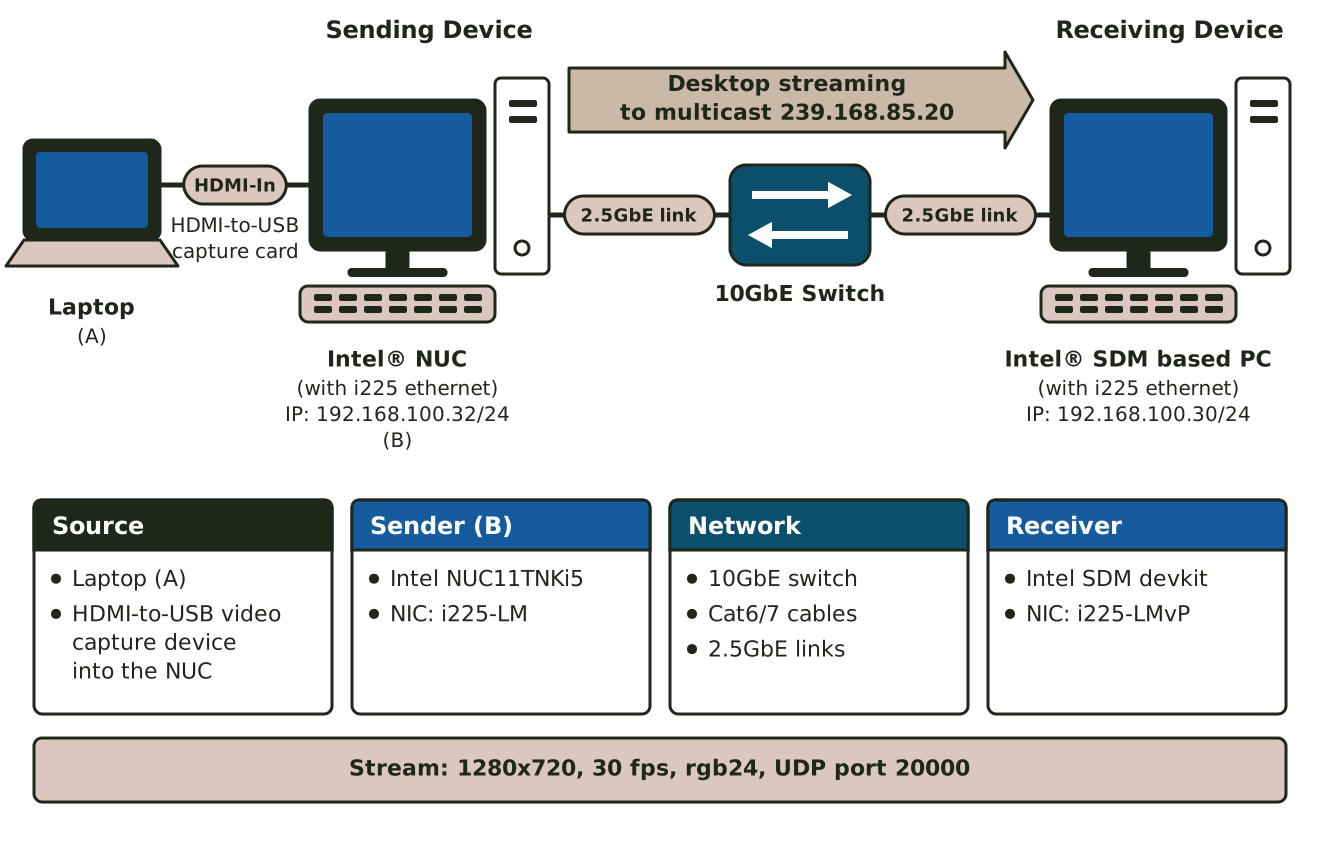
Synchronous playback scenario where output of a PC/Laptop is streamed via a sending device to the receiver.
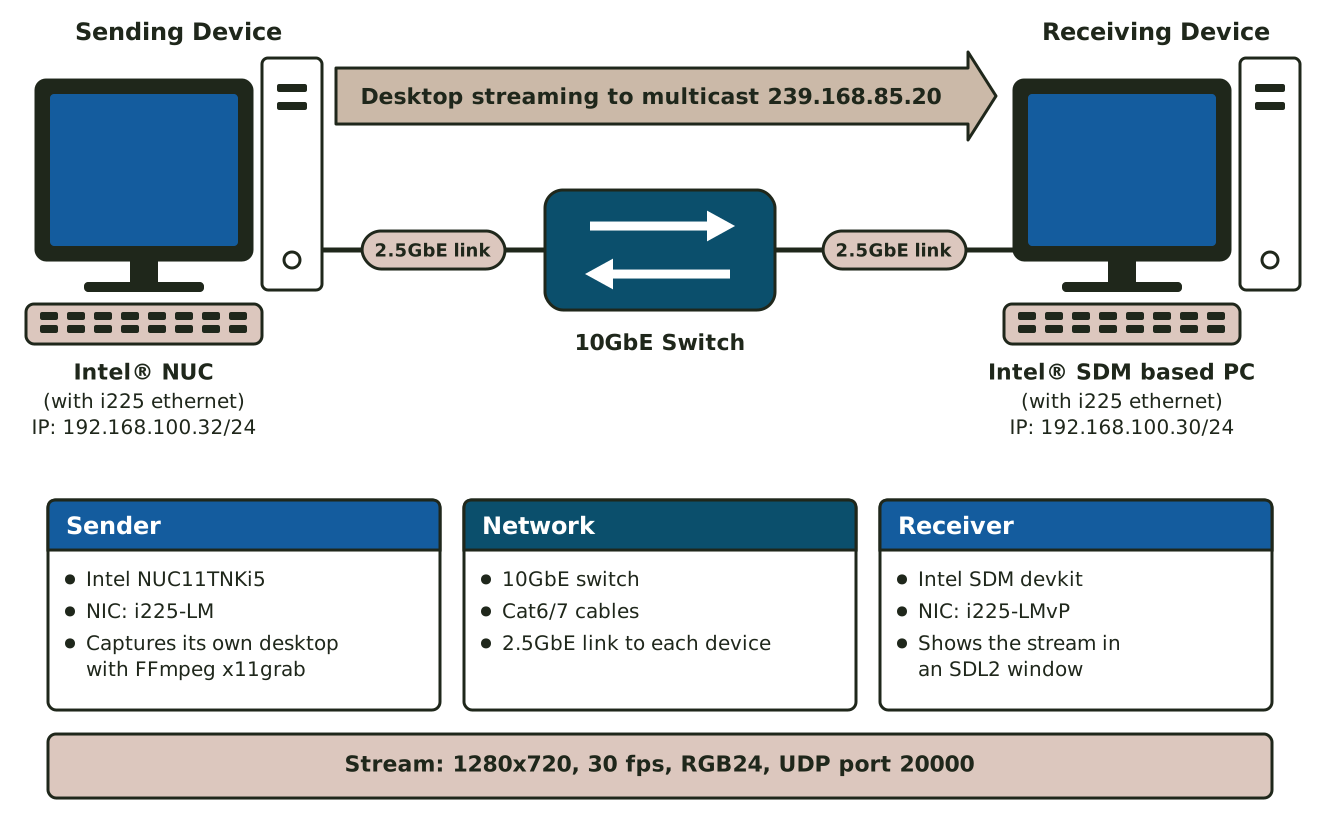
Asynchronous playback - where the sending device is streaming a digital media generated (e.g framebuffer) / stored locally on the device to the receiver.
2. Required Hardware#
Intel NUC11TNki5 (Codenamed Tiger Canyon) - Sending Device (NIC=i225-LM)
Intel® Smart Display Module (SDM) devkit (Codenamed Alder Valley) - Receiving Device (NIC=i225-LMvP)
Synchronous scenario - 1x HDMI-to-USB video capture device (e.g Mukose SDI2USB3.0)
10GbE Switch and few Cat6/7 cables
3. Required Software#
Ubuntu 22.03 LTS
Media Transport Library (MTL)
FFmpeg with MTL encoder and decoder patches
2. Installation and configuration#
The demo currently works only on Linux. Follow the steps below to install all the software components required for the demo.
Build Media Transport Library (MTL)#
See Build Guide to build libmtl on Linux.
Build ffmpeg (with MTL encoder and decoder)#
See dedicated README.md to build ffmpeg with MTL encoder/decoder on Ubuntu.
Follow instruction below (TBD)
Example command-line to send ST2110 stream to the receiver using ffmpeg#
For synchronous playaback, i.e streaming HDMI output of a Laptop via the sender, run:
sudo LD_LIBRARY_PATH=path/to/ffmpeg/lib ./ffmpeg -f video4linux2 -video_size 1280x720 -framerate 30 -i /dev/video0 -vcodec rawvideo -vf scale=1280:720,format=rgb24 -udp_port 20000 -port 0000:02:00.0 -local_addr 192.168.100.55 -dst_addr 239.168.85.20 -f kahawai_mux -
Note: The command-line above assume /dev/video0 is the Mukose’s HDMI2USB capture device.
For asynchronous playback, streaming the framebuffer of the sender (e.g Intel® NUC), run:
sudo DISPLAY=$DISPLAY LD_LIBRARY_PATH=path/to/ffmpeg/lib ./ffmpeg -f x11grab -i $DISPLAY -framerate 30 -vcodec rawvideo -pix_fmt rgb24 -video_size 1920x1080 -vf scale=1280:720 -udp_port 20000 -port 0000:02:00.0 -local_addr 192.168.100.55 -dst_addr 239.168.85.20 -f kahawai_mux -
Video transmission will begin once command is executed. Press Ctrl-C to terminate.
At the receiver (Intel® SDM), run:
sudo LD_LIBRARY_PATH=path/to/ffmpeg/lib ./ffmpeg -framerate 30 -pixel_format rgb24 -width 1280 -height 720 -udp_port 20000 -port 0000:58:00.0 -local_addr 192.168.100.55 -src_addr 239.168.85.20 -ext_frames_mode 0 -f kahawai -i k -f sdl2 -
An SDL2 window will pop-up at the receiver screen. Press Ctrl-C to terminate.
Note:
See readme for more info on the parameters supported by the kahawai’s ffmpeg plugin.
The example command-line above stream the session at 1280x720@30fps in rgb24 pixel format.
Provide the path to ffmpeg’s DLLs if the ffmpeg in the step above is installed in a non-default directory (eg. /usr/lib).
3. Limitation#
This demo is only tested to transport desktop session in uncompressed raw RGB24 pixel format.
At 2.5Gbps bandwidth, we may only stream the session at 1920x1080@30fps in RGB24 pixel format.
Requires to execute application with elevated privilege using sudo command.